

Over time, the blades in your Silhouette Cameo 4 may get dull or damaged, and this usually happens due to frequent cutting of materials. When you start getting incomplete or uneven cuts with your machine, it’s time to replace the blade. Replacing the blade helps you get cleaner cuts for your regular projects, such as stickers, fabrics, or decals.
If you have no idea ‘how to replace the blade‘, this blog will help you with easy step-by-step instructions. By the end of this guide, you’ll be able to replace the blade in your Silhouette Cameo 4 and cut your materials accurately. Let’s get started.
Reasons to Replace the Blade in Cameo 4
There are multiple reasons why the blade in the Cameo 4 should be replaced.
- Blade is dull: If you use tough materials frequently, the blade will dull over time due to excessive pressure.
- Incomplete cuts: If you get uneven cuts with your Cameo 4, the blade may be dull.
- Blade is damaged: Your blade may be chipped or damaged, which makes it difficult to use and needs immediate replacement.
Step 1: Power Off the Cameo 4 Machine
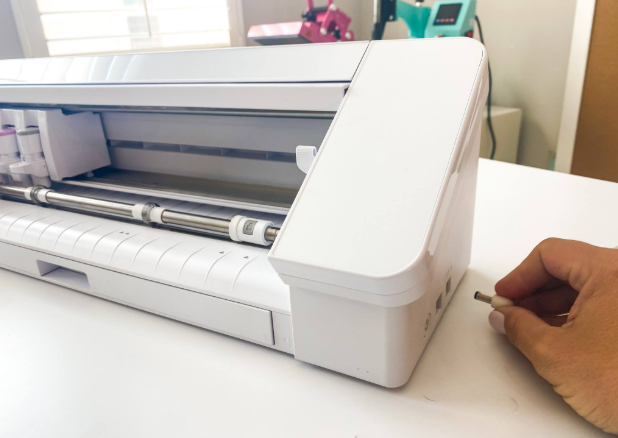
Your machine should be powered off while replacing the blade. Turn off the power button on the machine and remove its power cord from the wall outlet.
Step 2: Open the Carriage and Remove the Blade
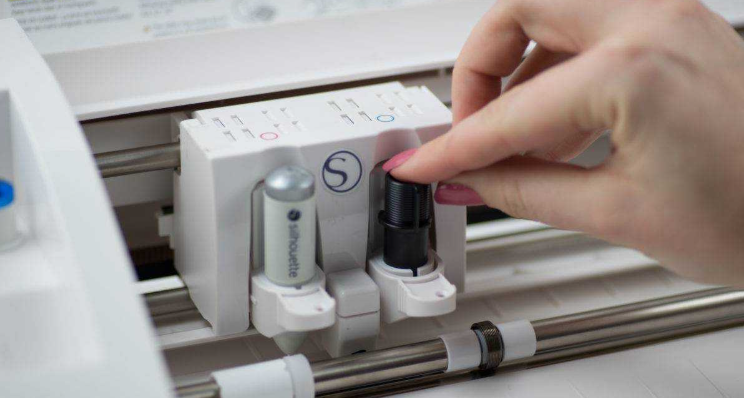
The carriage is where the blade is placed. Open the carriage by lifting the machine’s lid and locating the left carriage. Carefully pull the blade out of the housing.
Step 3: Insert the New Blade
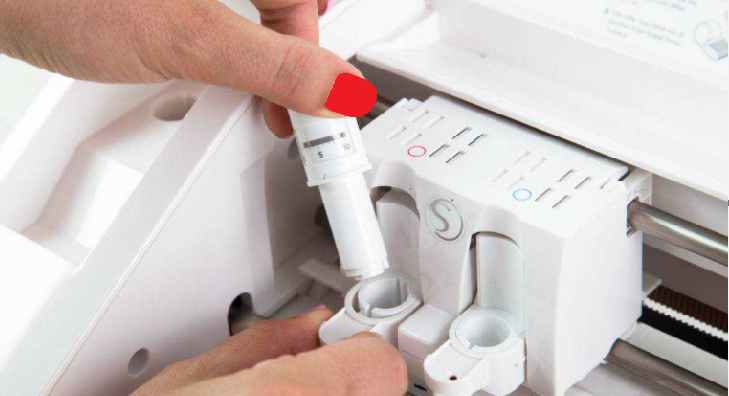
Identify the dull blade and get a replacement from an authorized source. Then, place it in the Tool 1 carriage and press it down firmly until it clicks into the slot. Check whether it’s loose and ensure it fits properly in the carriage.
Step 4: Close the Carriage
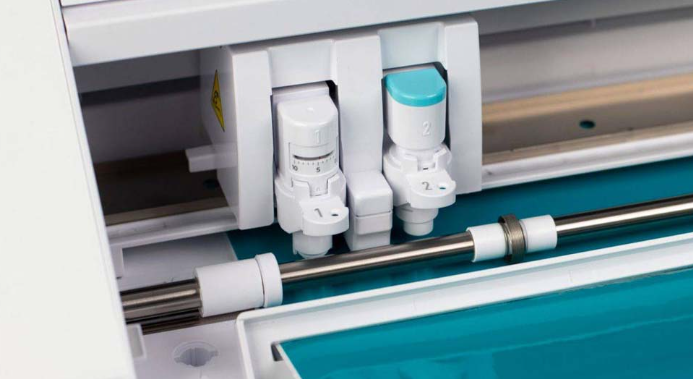
Once the new blade has been inserted, close the carriage by gently pushing the lid down. Now, you can turn on your Cameo 4 by connecting its ‘power cord‘ to the wall outlet and pressing its power button.
Ways to Increase the Life of Silhouette Cameo 4 Blades
Blades in your Cameo 4 machine need regular care. Otherwise, they will get dull before their time. Most users don’t pay attention to the blade’s compatibility while cutting. Follow the steps below to extend the lifespan of your blade.
- Use the dedicated blades: a Kraft blade for thicker materials (e.g., 3 mm Kraft) and an AutoBlade for cutting standard paper and vinyl.
- Keep the blades clean: Clean your blades regularly if you often use glitter materials or thick cardstock, which can cut with detail and damage the blade faster.
- Use quality blades: Use original blades during replacement, as third-party blades may not be that effective.
- Insert the blade into the right carriage: Ensure that you insert the blades into the correct tool carriage.
Read : How to Calibrate Silhouette Cameo 4? (Tutorial Steps)
Frequently Asked Questions (FAQs)
How Often Should I Replace the Blade In My Silhouette Cameo 4?
In general, the blade in the Cameo 4 may need replacement every 6 months, depending on usage. If you frequently use tougher materials, such as wood, you may need to replace them sooner.
How Do I Prevent My Silhouette Blades from Getting Damaged?
You can prevent your blades from getting damaged by using proper blade settings, cleaning the blades regularly, and using compatible blades for different materials.
What type of Blade Do I Need to Replace in My Silhouette Cameo 4?
There are four main types of blades that you may need to replace: the 3mm Kraft blade, the rotary blade, the deep-cut blade, and the Auto Blade 2. However, they don’t require replacement at the same time. Only the damaged or underperforming one should be replaced.
Can I Use Third-party Blades In My Silhouette Cameo 4?
Using third-party blades in the Cameo 4 may work well. However, original blades from Silhouette are recommended for better compatibility and performance.